Screen Recorder Pro

Screen Recorder Pro is a free online screen recorder that lets you capture your browser, full screen, or webcam with audio. No downloads or sign-ups needed. Perfect for recording quick tutorials, presentations, or software demos right from your browser. You get clean, watermark-free HD videos in MP4 or WebM format without any hassle.

Screen recording online should not require complicated software or technical knowledge. Screen Recorder Pro uses your browser's built-in screen-sharing capabilities to capture the content you select.
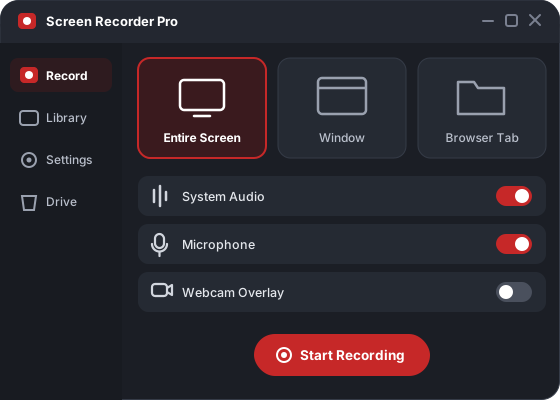
Click Start Recording for Free to launch the recording studio. Your browser will request permission to access your screen, microphone or webcam, depending on the recording options you enable. Allow only the permissions required for your recording.
Select the display, application window or browser tab you want to capture. Enable microphone recording if you need narration. For computer audio, choose a supported capture source and activate the available audio-sharing option.
Practical tip: if you are demonstrating a website, recording a single browser tab helps keep unrelated applications and notifications outside your video.
Start recording and use the pause or resume controls whenever necessary. Once you finish, stop the recording and download your video in an available format. You can also connect your Google account to save recordings directly to your own Google Drive.
Screen Recorder Pro provides a browser-based recording experience for people who need to capture videos without installing additional applications. Whether you are working on a school computer, preparing a tutorial or documenting a software issue, you can begin recording using a supported desktop browser.
Open the website, select your recording options and start capturing. There is no separate desktop installer or browser extension required for basic recording.
You can start recording and download the finished video without registering. If you want to save recordings to Google Drive, you can connect your Google account through the available sign-in process.
Screen Recorder Pro does not add a branded watermark to recordings created through its free or paid plans. Your videos remain suitable for tutorials, demonstrations, presentations and other content where an unobstructed recording is important.
The free plan offers recording quality options up to 1080p and supports sessions lasting up to one hour. Pause and resume your recording when you need to prepare the next demonstration or check your notes. Higher resolutions, additional export formats and longer sessions are available with Pro on our recording features page.
Screen Recorder Pro supports different capture modes so you can record only the content needed for your task.
Full-screen recording is useful when explaining workflows involving several applications. For example, you might demonstrate how information moves from a web browser into a spreadsheet or presentation.
Application-window recording focuses on one selected program. This works well for software tutorials, dashboard walkthroughs or technical demonstrations where unrelated desktop activity is not relevant.
Browser-tab recording lets you focus on one website or web application. It is particularly useful for recording web-based tutorials while reducing the chance of showing unrelated windows. For a detailed walkthrough, follow our guide to recording a single browser tab, including how to capture tab audio.
Recording your screen with clear narration can make instructions easier to follow. Screen Recorder Pro supports microphone recording, compatible computer audio capture and webcam overlay functionality.
Use your microphone to explain what viewers are seeing. This is helpful for educational lessons, software demonstrations and technical support videos. Before starting, confirm that your browser has permission to access the microphone you intend to use. For additional guidance on voice and computer sound, see how to record screen with internal audio.
Computer audio support depends on your operating system and browser. Chrome and Edge on Windows and supported Chromebooks provide system audio recording options. On Mac and Linux, Chrome and Edge typically support audio from shared browser tabs. Firefox and Safari have more limited computer-audio capture capabilities.
Important: microphone audio and computer audio are different sources. Enabling your microphone does not automatically capture sound from a browser tab or application. If your recording has no sound, check your browser's sharing permissions and selected audio source. Our screen recorder audio troubleshooting guide explains common causes and fixes.
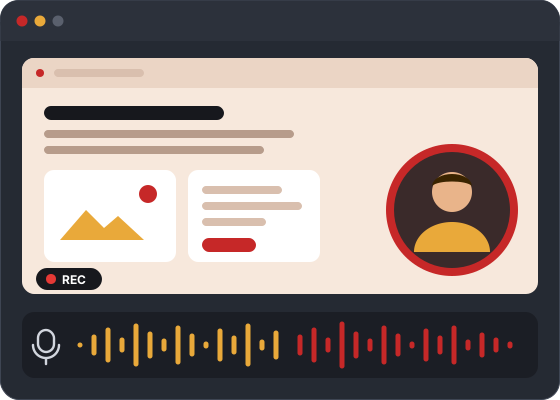
A webcam overlay allows viewers to see your face alongside the recorded screen. This is useful for tutorials, presentations and instructional content where a visible speaker can support the explanation. The studio includes webcam overlay controls, including adjustable position, size and shape, so you can record your webcam and screen together in one video.
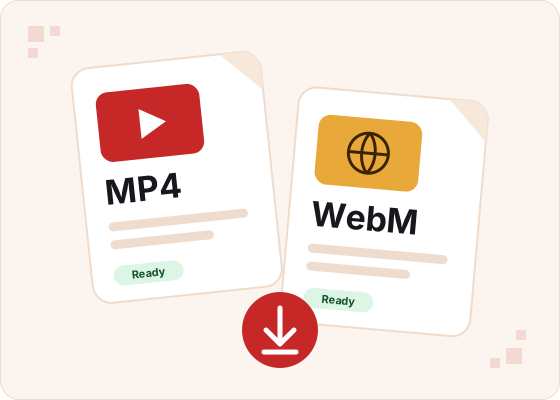
After recording, choose a file format that matches how you plan to use the video.
MP4 is a widely supported format used by common video players, presentation applications and editing software. Choose MP4 when you want a practical format for sharing recorded lessons, demonstrations or presentations.
WebM is designed for web-based media playback and is supported by modern browsers. It can be useful for website content or workflows where browser compatibility is the main consideration.
Which format should you choose? Use MP4 for broad compatibility and WebM for web-focused video workflows. Actual file size depends on recording duration, resolution, encoding and content. Both MP4 and WebM are included among the free recording options.
Screen Recorder Pro offers Google Drive integration for users who prefer keeping recordings in their own cloud storage. Once connected, recordings can be saved to your Google Drive account, where you manage file organisation and sharing permissions.
A Google account is not necessary when you only want to record and download videos locally.
Read the full privacy policy.
Screen Recorder Pro is designed for supported desktop and laptop browsers. Screen and audio recording capabilities depend on your browser, operating system and selected capture method.
| Browser and Device | Screen Recording | Computer Audio |
|---|---|---|
| Chrome or Edge on Windows | Supported | System audio options |
| Chrome on Chromebook | Supported | System audio options |
| Chrome or Edge on Mac or Linux | Supported | Shared tab audio |
| Firefox on desktop | Supported | Microphone recording |
| Safari on Mac | Supported | Microphone recording |
| Android and iPhone browsers | Not supported | Not supported |
For recordings that require computer sound, Chrome or Edge are practical starting points. Keep your browser updated and check the available permissions before recording. Mobile users can use the screen recording feature built into their Android or iPhone device.
A clear recording depends on more than choosing a high video resolution. Audio settings, screen selection and system performance also affect the final result.
Create a short test recording before capturing an important lesson or presentation. Listen to the playback to confirm that your narration and any required computer sound are present.
Higher resolutions can make text, software menus and interface details easier to read. However, they can also increase file size and processing requirements. Use a quality setting appropriate for your computer and the detail viewers need to see.
Close unnecessary applications and silence notifications before starting. Check that your selected window or tab contains the information you intend to record. If screen sharing fails, restart the capture process and select an available source when your browser displays its permission prompt.
For more detailed recording setup and permission guidance, visit the Screen Recorder Pro Help Centre.
Screen recordings can contain private documents, client information, internal dashboards and other sensitive material. Understanding where those files are processed and saved is important before recording.
According to Screen Recorder Pro's published privacy information, the application assembles recording data locally in your browser rather than processing videos on its own recording servers. For recordings made without signing in, you can download the finished video to your computer.
When using Google Drive integration, recordings are saved to your connected Google account. Screen Recorder Pro states that it does not retain a separate copy of your recording on its servers. Access to files saved in Google Drive depends on your account permissions and sharing settings.
Your browser requests permission before sharing a display, window, microphone or camera. Choose the content you want to capture carefully and avoid displaying passwords, private messages or confidential records. For details about browser permissions, recording storage and account data, review our Privacy Policy.
The online screen recorder supports everyday tasks across education, professional communication and technical documentation.
Create narrated lessons, explain assignments and record educational presentations for later review. For a practical walkthrough, read how to record a presentation with narration.
Prepare website demonstrations, software walkthroughs and tutorials using screen capture, narration and supported webcam options.
Record process explanations, project updates and short demonstrations that colleagues can review without arranging another meeting.
Capture software errors and explain technical problems visually. A focused recording can help another person understand the steps that led to an issue.
Screen Recorder Pro provides free recording features alongside a paid plan for users who need longer sessions or additional recording options.
| Feature | Free Plan | Pro Plan |
|---|---|---|
| Screen recording | Included | Included |
| Watermark | None | None |
| Recording duration | Up to 1 hour | Unlimited |
| Maximum resolution | Up to 1080p | Up to 4K |
| Frame rate | Up to 30 FPS | Up to 60 FPS |
| Export formats | MP4, WebM | Additional formats |
| Connected Google Drive accounts | 1 with free sign-up | Up to 10 |
| Saved Drive recordings | Up to 10 | Up to 2,000 |
For everyday presentations, short tutorials and software demonstrations, the free plan provides the core recording functions. Pro is better suited to users who regularly need extended sessions, higher video resolutions or additional storage options. Visit our pricing page for current subscription details and an up-to-date plan comparison.
Create tutorials, presentations, software demonstrations and other screen recordings with Screen Recorder Pro. Capture your screen, add supported audio and download your finished video without installing software or accepting a watermark.